

Free vector graphics of Hack

How Using the SLAM Method Can Improve Phishing Detection

There is a reason why phishing is usually at the top of the list for security awareness training. For the last decade or two, it has been the main delivery method for all types of attacks. Ransomware, credential theft, database breaches, and more launch via a phishing email.

Why has phishing remained such a large threat for so long? Because it continues to work. Scammers evolve their methods as technology progresses. They use AI-based tactics to make targeted phishing more efficient, for example.

If phishing didn’t continue working, then scammers would move on to another type of attack. But that hasn’t been the case. People continue to get tricked. They open malicious file attachments, click on dangerous links, and reveal passwords.

In May of 2021, phishing attacks increased by 281%. Then in June, they spiked another 284% higher.

Studies show that as soon as 6 months after training, phishing detection skills wane. Employees begin forgetting what they’ve learned, and cybersecurity suffers as a result.

Want to give employees a “hook” they can use for memory retention? Introduce the SLAM method of phishing identification.

What is the SLAM Method for Phishing Identification?

One of the mnemonic devices known to help people remember information is the use of an acronym. SLAM is an acronym for four key areas of an email message to check before trusting it.

These are:

S = Sender
L = Links
A = Attachments
M = Message text

By giving people the term “SLAM” to use, it’s quicker for them to check suspicious email. This device helps them avoid missing something important. All they need to do use the cues in the acronym.

Check the Sender

It’s important to check the sender of an email thoroughly. Often scammers will either spoof an email address or use a look-alike. People often mistake a spoofed address for the real thing.

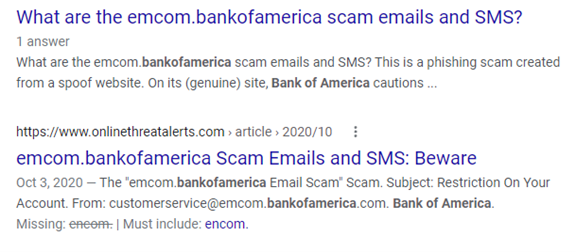
In this phishing email below, the email address domain is “@emcom.bankofamerica.com.” The scammer is impersonating Bank of America. This is one way that scammers try to trick you, by putting the real company’s URL inside their fake one.

Check the Sender

You can see that the email is very convincing. It has likely fooled many people into divulging their personal details. People applying for a credit card provide a Social Security Number, income, and more.

Doing a quick search on the email address, quickly reveals it to be a scam. And a trap used in both email and SMS phishing attacks.
Scam Email search

It only takes a few seconds to type an email address into Google. This allows you to see if any scam warnings come up indicating a phishing email.

Hover Over Links Without Clicking

Hyperlinks are popular to use in emails. They can often get past antivirus/anti-malware filters. Those filters are looking for file attachments that contain malware. But a link to a malicious site doesn’t contain any dangerous code. Instead, it links to a site that does.

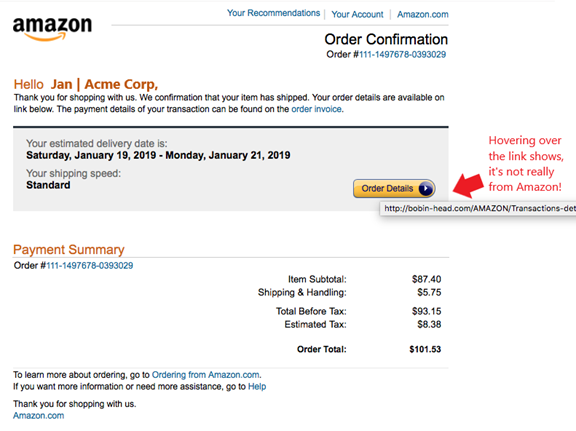
Links can be in the form of hyperlinked words, images, and buttons in an email. When on a computer, it’s important to hover over links without clicking on them to reveal the true URL. This often can immediately call out a fake email scam.
Hover over links without clicking

When looking at email on a mobile device, it can be trickier to see the URL without clicking on it. There is no mouse like there is with a PC. In this case, it’s best not to click the URL at all. Instead go to the purported site to check the validity of the message.

Never Open Unexpected or Strange File Attachments

File attachments are still widely used in phishing emails. Messages may have them attached, promising a large sale order. The recipient might see a familiar word document and open it without thinking.

It’s getting harder to know what file formats to avoid opening. Cybercriminals have become savvier about infecting all types of documents with malware. There have even been PDFs with malware embedded.

Never open strange or unexpected file attachments. Use an antivirus/anti-malware application to scan all attachments before opening.

Read the Message Carefully

We’ve gotten great at scanning through text as technology has progressed. It helps us quickly process a lot of incoming information each day. But if you rush through a phishing email, you can miss some telltale signs that it’s a fake.

Look at the phishing example posted above in the “Links” section. There is a small error in grammar in the second sentence. Did you spot it?

It says, “We confirmation that your item has shipped,” instead of “We confirm that your item has shipped.” These types of errors can be hard to spot but are a big red flag that the email is not legitimate.

Get Help Combatting Phishing Attacks

Both awareness training and security software can improve your defenses against phishing attacks. Contact us today to discuss your email security needs.


Featured Image Credit

This Article has been Republished with Permission from The Technology Press.
Free illustrations of Cyber

Did You Just Receive a Text from Yourself? Learn What Smishing Scams to Expect

How many text messages from companies do you receive today as compared to about two years ago? If you’re like many people, it’s quite a few more.

This is because retailers have begun bypassing bloated email inboxes. They are urging consumers to sign up for SMS alerts for shipment tracking and sale notices. The medical industry has also joined the trend. Pharmacies send automated refill notices and doctor’s offices send SMS appointment reminders.

These kinds of texts can be convenient. But retail stores and medical practices aren’t the only ones grabbing your attention by text. Cybercriminal groups are also using text messaging to send out phishing.

Phishing by SMS is “smishing,” and it’s becoming a major problem.

Case in point, in 2020, smishing rose by 328%, and during the first six months of 2021, it skyrocketed nearly 700% more. Phishing via SMS has become a big risk area. Especially as companies adjust data security to a more remote and mobile workforce.

How Can I Text Myself?

If you haven’t yet received a text message only to find your own phone number as the sender, then you likely will soon. This smishing scam is fast making the rounds and results in a lot of confusion. Confusion is good for scammers. It often causes people to click a malicious link in a message to find out more details.

Cybercriminals can make it look like a text message they sent you is coming from your number. They use VoIP connections and clever spoofing software.

If you ever see this, it’s a big giveaway that this is an SMS phishing scam. You should not interact with the message in any way and delete it instead. Some carriers will also offer the option to delete and report a scam SMS.

Popular Smishing Scams to Watch Out For

Smishing is very dangerous right now because many people are not aware of it. There’s a false sense of security. People think only those they have given it to will have their phone number.

But this isn’t the case. Mobile numbers are available through both legitimate and illegitimate methods. Advertisers can buy lists of them online. Data breaches that expose customer information are up for grabs on the Dark Web. This includes mobile numbers.

Less than 35% of the population knows what smishing is.

It’s important to understand that phishing email scams are morphing. They’ve evolved into SMS scams that may look different and be harder to detect.

For example, you can’t check the email address to see if it’s legitimate. Most people won’t know the legitimate number that Amazon shipping updates come from.

Text messages also commonly use those shortened URLs. These mask the true URL, and it’s not as easy to hover over it to see it on a phone as it is on a computer.

You need to be aware of what’s out there. Here are some of the popular phishing scams that you may see in your own text messages soon.

Problem With a Delivery

Who doesn’t love getting packages? This smishing scam leverages that fact and purports to be from a known shipper like USPS or FedEx. It states that there is a package held up for delivery to you because it needs more details.

The link can take users to a form that captures personal information used for identity theft. One tactic using this scam is to ask for a small monetary sum to release a package. Scammers created the site to get your credit card number.

Fake Appointment Scheduling

This scam happened to a community in South Carolina. They had recently had an installation of AT&T fiber internet lines in their neighborhood. Following the installation, AT&T did a customer drive to sign people up for the service.

During this time, one homeowner reported that he received a text message. It pretended to be from AT&T about scheduling his fiber internet installation. He thought it was suspicious because the address they gave was wrong. The scammer had wanted him to text back personal details.

Get Your Free Gift

Another recent smishing scam is a text message that doesn’t say who it’s from. It says, “Thank you for your recent payment. Here is a free gift for you.” It includes a link at the bottom of the message.

This is a widespread scam that many have noted online. And it’s an example of a scammer using a common fact. The fact that most people would’ve paid some type of bill recently and mistake the text to be from a company they know. It also lures people in with the promise of giving them a free gift.

Does Your Mobile Device Have the Security It Needs?

Smishing scams are very clever and can easily infect your device with malware. Do you have the proper security precautions (mobile antivirus, DNS filtering, etc.)?

If not, give us a call. We can help!


Featured Image Credit

This Article has been Republished with Permission from The Technology Press.
Top 5 Senior Living Cybersecurity Mistakes

60% of small and mid-sized Senior Living communities that have a data breach end up closing their doors within six months because they can’t afford the costs. The costs of falling victim to a cyberattack can include loss of business, downtime/productivity losses, reparation costs for customers that have had data stolen, and more.

The global damage of cybercrime has risen to an average of $11 million USD per minute, which is a cost of $190,000 each second.

You may think that this means investing more in cybersecurity, and it is true that you need to have appropriate IT security safeguards in place (anti-malware, firewall, etc.). However, many of the most damaging breaches are due to common cybersecurity mistakes that Senior Living communities and their employees make.

The 2021 Sophos Threat Report, which looked at thousands of global data breaches, found that what it termed “everyday threats” were some of the most dangerous. The report stated, “A lack of attention to one or more aspects of basic security hygiene has been found to be at the root cause of many of the most damaging attacks we’ve investigated.”

Is your organization making a dangerous cybersecurity mistake that is leaving you at high risk for a data breach, cloud account takeover, or ransomware infection?

Here are several of the most common missteps when it comes to basic IT security best practices.

Not Implementing Muti-Factor Authentication (MFA)

Credential theft has become the top cause of data breaches around the world, according to IBM Security. Login credentials hold the key to multiple types of attacks on community networks.

Not protecting your user logins with multi-factor authentication is a common mistake and one that leaves communities at a much higher risk of falling victim to a breach.

MFA reduces fraudulent sign-in attempts by a staggering 99.9%.

Ignoring the Use of Shadow IT

Shadow IT is the use of cloud applications by employees for business data that haven’t been approved and may not even be known about by a company.

Shadow IT use leaves companies at risk for several reasons:

  • Data may be used in a non-secure application
  • Data isn’t included in company backup strategies
  • If the employee leaves, the data could be lost
  • The app being used might not meet company compliance requirements

Employees often begin using apps on their own because they’re trying to fill a gap in their workflow and are unaware of the risks involved with using an app that hasn’t been vetted by their company’s IT team.

It’s important to have cloud use policies in place that spell out for employees the applications that can and cannot be used for work.

Thinking You’re Fine With Only an Antivirus Application

No matter how small your community is, a simple antivirus application is not enough to keep you protected. In fact, many of today’s threats don’t use a malicious file at all.

Phishing emails will contain commands sent to legitimate PC systems that aren’t flagged as a virus or malware. Phishing also overwhelmingly uses links these days rather than file attachments to send users to malicious sites. Those links won’t get caught by simple antivirus solutions.

You need to have a multi-layered strategy in place that includes things like:

  • Next-gen anti-malware (uses AI and machine learning)
  • Next-gen firewall
  • Email filtering
  • DNS filtering
  • Automated application and cloud security policies
  • Cloud access monitoring

Not Having Device Management In Place

A majority of companies around the world have had at least some employees working remotely from home since the pandemic, and they’re planning to keep it that way. However, device management for those remote employee devices as well as smartphones used for business hasn’t always been put in place.

If you’re not managing security or data access for all the endpoints (company and employee-owned) in your business, you’re at a higher risk of a data breach.

If you don’t have one already, it’s time to put a device management application in place, like Intune in Microsoft 365.

Not Providing Adequate Training to Employees

An astonishing 95% of cybersecurity breaches are caused by human error. Too many companies don’t take the time to continually train their employees, and thus users haven’t developed the skills needed for a culture of good cybersecurity.

Employee IT security awareness training should be done throughout the year, not just annually or during an onboarding process. The more you keep IT security front and center, the better equipped your team will be to identify phishing attacks and follow proper data handling procedures.

Some ways to infuse cybersecurity training into your community culture include:

  • Short training videos
  • IT security posters
  • Webinars
  • Team training sessions
  • Cybersecurity tips in community newsletters

When Did You Last Have a
Cybersecurity Checkup?

Don’t stay in the dark about your IT security vulnerabilities. Schedule a cybersecurity audit to uncover vulnerabilities so they can be fortified to reduce your risk.

Cyber, Attack, Encryption, Smartphone, Mobile, Finger

What You Need to Know About the Rise in Supply Chain Cyberattacks

Any cyberattack is dangerous, but the particularly devastating ones are those on supply chain companies. These can be any supplier – digital or non-digital – of goods and services.

We’ve seen several attacks on the supply chain occur in 2021 that had wide-reaching consequences. These are “one-to-many” attacks where victims can go far beyond the company that was initially breached.

Some recent high-profile examples of supply chain attacks include:

  • Colonial Pipeline: A ransomware attack caused this major gas pipeline to be shut down for nearly a week.
  • JBS: The world’s largest supplier of beef and pork products was hit with ransomware that caused plants in at least three countries to shut down for several days.
  • Kaseya: This software company had its code infected with ransomware, which quickly spread to IT businesses that used its products and to roughly 1,500 of their small business customers. 

Why do you need to be worried about supply chain attacks even more so than in the past? Because they’ve been growing and are expected to continue this trajectory.

Supply chain attacks rose by 42% during the first quarter of 2021. A surprising 97% of companies have been impacted by a breach in their supply chain, and 93% suffered a direct breach as a result of a supply chain security vulnerability.

If you’re not properly prepared, then you can be impacted by a breach of software you use or have a vital service or goods supplier go down for several days due to a cyberattack. 

As part of any good business continuity and disaster recovery strategy, you should look at supply chain risks in light of the current increase in attacks and formulate a plan.

How Can You Mitigate Your Risk of Losses Due to an Attack on Your Supply Chain?

Identify Your Supplier Risk

You can’t fix what you don’t know is wrong. So, you need to begin by shedding some light on your risk should one of your vendors get hit with ransomware (the current attack of choice on the supply chain) or another type of breach.

Make a list of all your vendors and suppliers, both for goods and services. This includes everything from the cloud services you use to the company that supplies your office products or any raw materials you may use in a product you sell.

Review these vendors to identify their cybersecurity risks. This is something you may need some help with from your IT partner. We can work with you to review vendor security or send them a survey to find out where they stand as to their cybersecurity, and then determine how much that may leave you at risk as one of their customers.

Create Minimum Security Requirements for Digital Vendors

Come up with some minimum security requirements that you can use as a benchmark with your vendors. One way to make this easier is to use an existing data privacy standard as your requirement. 

For example, if a vendor is GDPR compliant, then you know they’ve adopted several important cybersecurity standards that protect their business, and yours, from an attack.

Do an IT Security Assessment to Learn Where You’re Vulnerable

If the software you use had a vulnerability that was exploited by hackers to take over a system, how much does that leave your systems at risk? Do you have a regular patch application strategy in place to ensure any software updates are applied right away?

You should have an IT security assessment done if you haven’t done one in over a year. This will help you identify how strong your systems would be at preventing a breach or ransomware infection that was coming from a digital supply chain vendor.

Put Backup Vendors in Place Where Possible

If you sell widgets and have a single supplier for one specific part needed for that widget, you’re at a much higher risk of downtime than if you had two suppliers of that part.

If a key vendor of yours is attacked and can’t fill orders or provide services for a week or more, how will that impact your business? This is what you want to consider when setting up backup vendors.

For example, most companies would consider themselves down and not able to operate without their internet. Having a backup internet service provider can help you avoid lengthy downtime should your main ISP go down.

Look at putting this type of safety net in place for all vendors that you can.

Ensure All Data Kept in Cloud Services is Backed Up in a 3rd Party Tool

Microsoft recommends in its Services Agreement that customers back up their cloud data that is kept in its services (such as Microsoft 365). The policy states, “We recommend that you regularly backup Your Content and Data that you store on the Services or store using Third-Party Apps and Services.”

You should have a backup (in a separate platform) of all data that you store in cloud services, so you’ll be protected in case of a ransomware infection or other data loss or service loss incident.

Schedule A Supply Chain Security Assessment

Don’t be in the dark about your risk. Schedule a supply chain security assessment to learn where you could be impacted in the case of a cyberattack on a supplier.


Featured Image Credit

This Article has been Republished with Permission from The Technology Press.
iphone screen with icons on screen

Microsoft Teams Plan Comparison: Free vs M365 Business vs Teams Essentials

The shift to remote work over the last two years has caused companies to realign their digital tools. Now, many meetings default to being via video conference rather than in person, and working from home has become commonplace.

Seventy-seven percent of remote workers say they’re more productive working from home (a big reason is fewer distractions). Plus 85% of surveyed managers expect that having teams with remote workers will be the new normal.

But for remote working to work without employees feeling disconnected and customers feeling you’re hard to reach, you need to use cloud communication tools. One of the most popular, which has skyrocketed in popularity, is Microsoft Teams.

Between April 2020 and April 2021, the Microsoft Teams daily active users count rose from 75 million to 145 million

Teams is an all-in-one communication platform, providing more than just video conferencing or chat. It combines several capabilities into an online work hub for collaboration and communication. 

Some of the key features of MS Teams include:

  • Video and audio calls
  • Webinar registration & attendance reporting
  • Channeled team chat
  • File storage and sharing
  • In-app collaboration in Word, Excel, PPT, and more
  • In-app collaboration in 3rd party applications
  • Tabs that allow teams to link apps and websites inside a channel
  • Status notification and alerts
  • Use on all devices

MS Teams Evolution

Originally, Microsoft Teams was available only through a Microsoft 365 Business subscription. Then, to improve the popularity of Teams and compete with video conferencing platforms like Zoom, Microsoft brought out a free version with fewer features in 2018.

This helped the service increase its user base, however, there was a wide gap between the capabilities of the paid version with a Microsoft 365 subscription and the free version. Such as much less support, fewer features, etc.

Microsoft noted that it was missing a vital audience, the small business. Small business owners had a more difficult time fitting into either the free model, with very limited group meeting timing, or the paid model, which required a full M365 subscription.

So, in December of 2021, it brought out the third plan for MS Teams that it is hoping is “just right” for smaller companies that need the same collaboration and communication tools as everyone else. This plan is called Teams Essentials, and you don’t need to sign up for Microsoft 365 to get it.

Comparison of Teams Essentials vs Teams Free vs Teams with an M365 Business Plan

Next, we’ll go through the differences between these three MS Teams plans so you can identify the one that may make the most sense for your company.

Microsoft Teams Free Version

The free version of MS Teams was really brought out to reach the residential and home user crowd. An audience that had been completely missing from the Teams userbase up to that point.

This plan has the following capabilities:

  • Unlimited group meetings for up to 60 minutes
  • Up to 100 participants per meeting
  • 5GB of cloud storage per user
  • Unlimited chat
  • File sharing, tasks, and polling
  • Data encryption for calls, files, meetings, chats
  • Co-authoring capabilities
  • Ability to add tabs inside group channels

The biggest drawback of using the free version for your business is the 60-minute limit on group video meetings. The 5GB cloud storage also can be limiting for business use of Teams.

Microsoft Teams Essentials

Teams Essentials is $4/user/month and was designed specifically for small businesses that may not want to subscribe to M365, but still need a good cloud collaboration tool to keep their team connected and productive.

This plan has the following capabilities:

  • Everything in the free version, plus:
  • Unlimited group meetings for up to 30 hours
  • Up to 300 participants per meeting
  • 10GB of cloud storage per user
  • Anytime phone and web support

The additional group meeting time (up to 30 hours) is more than enough to fill any type of meeting need, even those that go on all day. Additionally, users get double the cloud storage space, and the phone and web support ensure your staff has help using the app when needed.

Teams with Microsoft 365

The version of Teams with Microsoft 365 is available with any business plan. The lowest cost plan is $6.00/user/month ($2 more than Essentials). However, the Basic package does not come with downloadable Office apps (Word, Excel, etc.), only the web versions.

The next step up would be M365 Business Standard at $12.50/user/month, which is quite a bit more than the price for Teams Essentials. This one does include the downloadable Office apps.

These plans have the following capabilities:

  • Everything in the Essentials version, plus:
  • Office applications (either web or web & downloadable)
  • All the many M365 cloud apps (OneDrive, Forms, SharePoint, OneNote, and many others)
  • 1TB of cloud storage per user
  • Webinar hosting
  • Customer appointment management
  • Premium security features

If you are planning to use Microsoft Office software and other applications, then it makes sense to get Teams along with an M365 subscription. However, if your business already owns the offline version of the Office suite or does not need it, then Teams Essentials offers a lot of capabilities with a lower price tag.

Need Help Getting MS Teams or Other Cloud Tools Set Up?

Today’s hybrid offices and remote teams need robust collaboration tools to compete. Contact us if you need help getting started with MS Teams or another cloud tool. We’ll be happy to facilitate a custom setup to ensure your staff can hit the ground running.


Featured Image Credit

This Article has been Republished with Permission from The Technology Press.
Laptop, Mouse, Stethoscope, Notebook, Keyboard

What Are the Best Ways to Give an Older PC New Life?

Purchasing a new computer is a big investment. Many small businesses and home PC owners end up struggling with older systems because they want to get as many years out of them as possible.

Have you found yourself banging on your keyboard in frustration? Have you tried every tip and trick you found online, only to still struggle with a slow PC? 

There are some promising upgrades you can do that will cost much less than the price of a new computer, while making your PC feel like new again. 

Here are some of the options you can try to improve the performance of an older computer.

Upgrade to a Solid-State Drive (SSD)

Prices for solid-state drives have come down quite a bit in the past few years, making them an affordable upgrade that can breathe life back into an older PC that might be slowing down.

Unlike hard disk drives (HDDs), SSDs do not have any moving parts and use a flash memory that allows for a quicker response time. You can improve your time to boot and your experience when searching files, opening applications, and other activities. 

Some of the advantages of upgrading your computer’s hard drive to SSD include:

  • SSD read/write speeds up to 2500 MB/second compared to HDD at up to 200 MB/second
  • SSD access time of 0.1ms as compared to HDD at 5.5-8.0ms
  • SSDs use between 2-5 watts of energy compared to HDD at 6-15 watts

Increase the RAM (Memory)

One upgrade that is very low-cost and can mean a significant increase in performance is a memory upgrade. If your PC was one of the cheaper ones that only had 4GB of RAM when you bought it, you likely have trouble opening too many tabs in your browser or using any graphics-heavy program.

Upgrading your RAM, if your PC has available memory slots, to 8GB or 12GB can make it seem like you have an entirely new computer due to the big increase in speed.

Upgrade the Graphics Card

If you play computer games or work in any type of video, imaging, or 3D software, an outdated graphics card can ruin your experience. 

Instead of replacing your entire computer, just upgrading the graphics card to a more robust model can improve your PC’s performance and give you several more useful years from it.

Replace Your PC Cooling System

Heat is an enemy of your computer’s internal parts. If your cooling system is getting worn out and not working the way it should be, then excess heat can be building up inside your device.

When this happens things can get strange, with programs crashing or your system rebooting on its own.

If you suspect excess heat may be an issue, have your computer’s fan and cooling system checked out to see if it needs replacing.

Connect an External Monitor to a Laptop

If you’re working on a laptop and having a hard time multi-tasking due to limited screen real estate, consider getting an external monitor rather than replacing your entire PC.

Monitors are just a fraction of the cost of computers, and having a screen twice the size of the one on your laptop can make all the difference in the world and improve productivity due to the additional screen space.

Replace Your Keyboard

Older keywords can stick, lose keys, and have the writing rubbed off the keys, making it more difficult to tell a “prt screen” from a “delete” button. If the performance of your PC is hampered by a frustrating keyboard, an upgrade can be a very inexpensive way to improve your equipment.

Get an External Hard Drive

Computers can slow down and be more difficult to use when the hard drive fills up with data. Over the years, files build up, and many users never take the time to go through and delete those that are unnecessary.

Buying an external hard drive can allow you to offload files that may be slowing you down, while still keeping them easily accessible.

Another benefit of an external hard drive is that it’s portable and can easily be carried between home and work and used in both places.

Get a Professional Computer Tune-Up

Those free PC cleaner tools you find online aren’t going to give you the type of tune-up that a professional IT provider can give. We will go through things like the Windows Registry, duplicate system files, internal errors, and more to clean up your system and remove all the “junk” that has built up over the years.

We can also do a maintenance check for things like failing parts, and provide expert guidance on your most impactful upgrade options. 

Get Help Improving Your Computer’s Performance Today!

Don’t struggle with an older PC! We can help you with cost-effective upgrade options that will fit your system and budget perfectly.


Featured Image Credit

This Article has been Republished with Permission from The Technology Press.
Cyber Security, Technology, Network, Internet

How to Protect Your Online Accounts from Being Breached

Stolen login credentials are a hot commodity on the Dark Web. There’s a price for every type of account from online banking to social media. For example, hacked social media accounts will go for between $30 to $80 each.

The rise in reliance on cloud services has caused a big increase in breached cloud accounts. Compromised login credentials are now the #1 cause of data breaches globally, according to IBM Security’s latest Cost of a Data Breach Report.

Having either a personal or business cloud account compromised can be very costly. It can lead to a ransomware infection, compliance breach, identity theft, and more.

To make matters more challenging, users are still adopting bad password habits that make it all too easy for criminals. For example:

  • 34% of people admit to sharing passwords with colleagues
  • 44% of people reuse passwords across work and personal accounts
  • 49% of people store passwords in unprotected plain text documents

Cloud accounts are more at risk of a breach than ever, but there are several things you can do to reduce the chance of having your online accounts compromised.

Use Multi-Factor Authentication (MFA)

Multi-factor authentication (MFA) is the best method there is to protect cloud accounts. While not a failsafe, it is proven to prevent approximately 99.9% of fraudulent sign-in attempts, according to a study cited by Microsoft.

When you add the second requirement to a login, which is generally to input a code that is sent to your phone, you significantly increase account security. In most cases, a hacker is not going to have access to your phone or another device that receives the MFA code, thus they won’t be able to get past this step.

The brief inconvenience of using that additional step when you log into your accounts is more than worth it for the bump in security.

Use a Password Manager for Secure Storage

One way that criminals get their hands on user passwords easily is when users store them in unsecured ways. Such as in an unprotected Word or Excel document or the contact application on their PC or phone.

Using a password manager provides you with a convenient place to store all your passwords that is also encrypted and secured. Plus, you only need to remember one strong master password to access all the others. 

Password managers can also autofill all your passwords in many different types of browsers, making it a convenient way to access your passwords securely across devices.

Review/Adjust Privacy & Security Settings

Have you taken the time to look at the security settings in your cloud tools? One of the common causes of cloud account breaches is misconfiguration. This is when security settings are not properly set to protect an account.

You don’t want to just leave SaaS security settings at defaults, as these may not be protective enough. Review and adjust cloud application security settings to ensure your account is properly safeguarded.

Use Leaked Password Alerts in Your Browser

You can have impeccable password security on your end, yet still have your passwords compromised. This can happen when a retailer or cloud service you use has their master database of usernames and passwords exposed and the data stolen.

When this happens, those leaked passwords can quickly end up for sale on the Dark Web without you even knowing it.

Due to this being such a prevalent problem, browsers like Chrome and Edge have had leaked password alert capabilities added. Any passwords that you save in the browser will be monitored, and if found to be leaked, you’ll see an alert when you use it.

Look for this in the password area of your browser, as you may have to enable it. This can help you know as soon as possible about a leaked password, so you can change it.

Don’t Enter Passwords When on a Public Wi-Fi

Whenever you’re on public Wi-Fi, you should assume that your traffic is being monitored. Hackers like to hang out on public hot spots in airports, restaurants, coffee shops, and other places so they can gather sensitive data, such as login passwords.

You should never enter a password, credit card number, or other sensitive information when you are connected to public Wi-Fi. You should either switch off Wi-Fi and use your phone’s wireless carrier connection or use a virtual private network (VPN) app, which encrypts the connection.

Use Good Device Security

If an attacker manages to breach your device using malware, they can often breach your accounts without a password needed. Just think about how many apps on your devices you can open and already be logged in to. 

To prevent an online account breach that happens through one of your devices, make sure you have strong device security. Best practices include:

  • Antivirus/anti-malware
  • Up-to-date software and OS
  • Phishing protection (like email filtering and DNS filtering)

Looking for Password & Cloud Account Security Solutions?

Don’t leave your online accounts at risk. We can help you review your current cloud account security and provide helpful recommendations.


Featured Image Credit

This Article has been Republished with Permission from The Technology Press.
Phishing, Credentials, Data, Login, Password, Internet

6 Ways to Combat Social Phishing Attacks

Phishing is the number one method of attack delivery for everything from ransomware to credential theft. We are very aware of it coming by email, but other types of phishing have been growing rapidly.

In recent years, phishing over social media has skyrocketed by 500%. There has also been a 100% increase in fraudulent social media accounts.

Phishing over social media often tricks the victims because people tend to let their guard down when on social platforms like Facebook, Instagram, Twitter, and LinkedIn. They’re socializing and not looking for phishing scams.

However, phishing scammers are out there looking for you and will reach out via friend requests and direct messages. Learn several ways you can secure your social media use to avoid these types of covert attacks.

Make Your Profile Private on Social Platforms

Phishing scammers love public profiles on social media because not only can they gather intel on you to strike up a conversation, but they can also clone your profile and put up a fake page for phishing your connections.

Criminals do this in order to try to connect with those on your friends or connections list to send social phishing links that those targets will be more likely to click because they believe it’s from someone they know.

You can limit your risk by going into your profile and making it private to your connections only. This means that only someone that you’ve connected with can see your posts and images, not the general public.

For sites like LinkedIn where many people network for business, you might still want to keep your profile public, but you can follow the other tips below to reduce your risk.

Hide Your Contacts/Friends List

You can keep social phishing scammers from trying to use your social media profile to get to your connections by hiding your friends or connections list. Platforms like LinkedIn and Facebook both give you this privacy option. 

Just be aware that this does not keep scammers from seeing you as a friend or connection on someone else’s profile unless they too have hidden their friends list.

Be Wary of Links Sent via Direct Message & in Posts

Links are the preferred way to deliver phishing attacks, especially over social media. Links in social posts are often shortened, making it difficult for someone to know where they are being directed until they get there. This makes it even more dangerous to click links you see on a social media platform.

A scammer might chat you up on LinkedIn to inquire about your business offerings and give you a link that they say is to their website. Unless you know the source to be legitimate, do not click links sent via direct message or in social media posts. They could be leading to a phishing site that does a drive-by download of malware onto your device.

Even if one of your connections shares a link, be sure to research where it is coming from. People often share posts in their own feeds because they like a meme or picture on the post, but they never take the time to check whether the source can be trusted.

Don’t Participate in Social Media Surveys or Quizzes

While it may be fun to know what Marvel superhero or Disney princess you are, stay away from quizzes on social media. They’re often designed as a ploy to gather data on you. Data that could be used for targeted phishing attacks or identity theft.

The Cambridge Analytica scandal that impacted the personal data of millions of Facebook users did not happen all that long ago. It was found that the company was using surveys and quizzes to collect information on users without their consent.

While this case was high-profile, they’re by no means the only ones that play loose and fast with user data and take advantage of social media to gather as much as they can.

It’s best to avoid any types of surveys or quizzes on any social media platform because once your personal data is out there, there is no getting it back.

Avoid Purchasing Directly from Ads on Facebook or Instagram

Many companies advertise on social media legitimately, but unfortunately, many scammers use the platforms as well for credit card fraud and identity theft.

If you see something that catches your eye in a Facebook or Instagram ad, go to the advertiser’s website directly to check it out, do not click through the social ad.

Research Before You Accept a Friend Request

It can be exciting to get a connection request on a social media platform. It could mean a new business connection or connecting with someone from your Alma mater. But this is another way that phishing scammers will look to take advantage of you. They’ll try to connect to you which can be a first step before reaching out direct via DM.

Do not connect with friend requests without first checking out the person on the site and online using a search engine. If you see that their timeline only has pictures of themself and no posts, that’s a big red flag that you should decline the request.

Can Your Devices Handle a Phishing Link or File?

It’s important to safeguard your devices with things like DNS filtering, managed antivirus, email filtering, and more. This will help protect you if you happen to click on a phishing link.

Find out how we can help!


Featured Image Credit

This Article has been Republished with Permission from The Technology Press.
Upload, Online, Internet, Files, Cloud, Technology

4 Interesting Cloud Storage Trends to Watch for in 2022

One area of cloud computing that is used widely, but often isn’t as flashy as the software side is cloud storage. Storing files in the cloud to make them easily accessible and shareable from anywhere was one of the very first uses of the cloud that was adopted widely by many users.

As advances like automation and AI come to other types of cloud services, like team communications and business apps, cloud storage is not being left behind. The industry also continues to evolve to make storing data in the cloudless complex, more reliable, and better secured.

It’s estimated that in 2021, 50% of all company data was stored in the cloud. This is an increase of 15% from just five years earlier. With today’s hybrid teams that may be working from home and be hundreds or thousands of miles away from co-workers, it’s important to centrally locate files in cloud systems that can be accessed by everyone.

What can you expect to see in the cloud storage market this year? Here are some of the most interesting trends to keep an eye on.

1. Built-in Ransomware Defenses

Ransomware can impact data no matter where it is stored. Whether on a computer, server or in a cloud storage platform, this malware can encrypt the information and make it unreadable to the business that owns it.

In 2021, the average ransomware payment increased by 82% and ransomware incidents rose 64% during the first half of the year. A survey of CISOs found that over the last 18 months, 98% of organizations suffered a cloud data breach.

To combat ransomware, you’ll begin seeing cloud storage services offering ransomware recovery protection. This involves sophisticated systems that can help prevent files from being encrypted by code as well as those that take a copy of files and store it securely away, so files can be restored at the click of a button.

With ransomware showing no sign of stopping, this is a welcome addition in the cloud storage arena.

2. “The Edge” Becomes More Key in Cloud Storage

One of the new buzzwords of the last few years has been “Edge” or “Edge computing.” This means bringing data applications and storage resources geographically closer to the user that needs to connect to them.

As reliance on cloud storage and other cloud applications has increased, so has the need to improve response times from user to server. When data must travel across large distances, it becomes more difficult to quickly and economically deliver the best user experience. Thus, cloud service providers have been moving to an Edge computing model.

What this means for you is better reliability and faster response when accessing or searching on files because your provider is going to work to provide your service from one of the company’s cloud servers that is geographically closer to your location.

For companies with offices spread out around a country or throughout the world, this means that you’ll want to keep service location in mind when signing up for cloud storage and have a discussion with the provider about distance and how Edge computing factors in.

3. Expect More Help from AI and Machine Learning

AI and machine learning are making just about every area of technology smarter. Microsoft Word and text message apps now predict what you might type to help you fill in the blanks and type faster. Programs like Photoshop can crop around a person in an image in seconds using AI.

AI is also going to become more prevalent in cloud storage this year. You can expect help with automatic organization of your files based on your cloud storage patterns. 

Look for features designed to eliminate manual or repetitive tasks to free up more time. This includes AI helping to automate things like provisioning, obtaining, and importing data (known as “ingesting”), managing data retention, and more.

4. Legacy Vendors Begin Offering More Cloud Options

2022 is going to bring more cloud storage options coming from legacy technology providers. For example, Hewlett-Packard Enterprise recently introduced a new Data Services Cloud Console, and Dell Technologies just announced a new APEX multi-cloud design that it is working on to improve the cloud ecosystem.

More cloud storage options mean you may need more help deciding which model will work best for you, as pricing will vary widely. You don’t want to end up with more storage than you need or be paying a lot for a smaller amount of space.

It pays to keep on top of new offerings and understand that every new cloud storage option might not be a fit for your organization’s specific data storage needs.

Get Help Optimizing Your Cloud Storage & Backup Environment

Your business data is what runs your company, and it needs to be stored securely and in a way that’s accessible. Find out how we can help you optimize your cloud storage to improve cost efficiency.


Featured Image Credit

This Article has been Republished with Permission from The Technology Press.
person using laptop

5 Things You Should Never Do on a Work Computer

Whether you work remotely or in an office, the line between personal and work tasks can become blurred when working on your company computer. If you’re in front of a computer for most of your time during work, then it’s not unusual to get attached to your desktop PC.

Over time, this can lead to doing personal things on a work computer. At first, it might just be checking personal email while on a lunch break. But as the line continues to get crossed, it can end up with someone using their work computer just as much for personal reasons as work tasks.

In a survey of over 900 employees, it was found that only 30% said they never used their work PC for personal activities. The other 70% admitted to using their work computer for various personal reasons.

Some of the non-work-related things that people do on a work computer include:

  • Reading and sending personal email
  • Scanning news headlines
  • Shopping online
  • Online banking
  • Checking social media
  • Streaming music
  • Streaming videos/movies

It’s a bad idea to mix work and personal, no matter how much more convenient it is to use your work PC for a personal task during the day. You can end up getting reprimanded, causing a data breach at your company, or possibly losing your job.

Here are several things you should never do on your work PC.

1. Save Your Personal Passwords in the Browser

Many people manage their passwords by allowing their browser to save and then auto-fill them. This can be convenient, but it’s not very secure should you lose access to that PC.

When the computer you use isn’t yours, it can be taken away at any time for a number of reasons, such as an upgrade, repair, or during an unexpected termination.

If someone else accesses that device and you never signed out of the browser, that means they can leverage your passwords to access your cloud accounts.

Not all older PCs are stored in a storeroom somewhere or destroyed. Some companies will donate them to worthy causes, which could leave your passwords in the hands of a stranger if the PC hasn’t been wiped properly.

2. Store Personal Data

It’s easy to get in the habit of storing personal data on your work computer, especially if your home PC doesn’t have a lot of storage space. But this is a bad habit and leaves you wide open to a couple of major problems:

  • Loss of your files: If you lose access to the PC for any reason, your files can be lost forever
  • Your personal files being company-accessible: Many companies have backups of employee devices to protect against data loss. So, those beach photos stored on your work PC that you’d rather not have anyone else see could be accessible company-wide because they’re captured in a backup process.

3. Visit Sketchy Websites

You should assume that any activity you are doing on a work device is being monitored and is accessible by your boss. Companies often have cybersecurity measures in place like DNS filtering that is designed to protect against phishing websites.

This same type of software can also send an alert should an employee be frequenting a sketchy website deemed dangerous to security (which many sketchy websites are).

You should never visit any website on your work computer that you wouldn’t be comfortable visiting with your boss looking over your shoulder.

4. Allow Friends or Family to Use It

When you work remotely and your work computer is a permanent fixture in your home, it can be tempting to allow a friend or family member to use it if asked. Often, work PCs are more powerful than a typical home computer and may even have company-supplied software that someone wouldn’t purchase on their own.

But allowing anyone else to use your work computer could constitute a compliance breach of data protection regulations that your company needs to adhere to.

Just the fact that the personal data of your customers or other employees could be accessed by someone not authorized to do so, can mean a stiff penalty.

Additionally, a child or friend not well-versed in cybersecurity could end up visiting a phishing site and infecting your work device, which in turn infects your company cloud storage, leaving you responsible for a breach.

At least 20% of companies have experienced a data breach during the pandemic due to a remote worker.

5. Turn off Company-Installed Apps like Backups and Antivirus

If you’re trying to get work done and a backup kicks in and slows your PC down to a crawl, it can be tempting to turn off the backup process. But this can leave the data on your computer unprotected and unrecoverable in the case of a hard drive crash or ransomware infection.

Company-installed apps are there for a reason and it’s usually for cybersecurity and business continuity. These should not be turned off unless given express permission by your supervisor or company’s IT team

How Secure Is the Device You Use to Work from Home?

Whether you’re working remotely and worried about causing a data breach or are a business owner with multiple remote team members to secure, device protection is important. Schedule a device security checkup today.


Featured Image Credit

This Article has been Republished with Permission from The Technology Press.

Page 15 of 18

Powered by WordPress & Theme by Anders Norén