
Hacking, Data Theft, Online Fraud, Cyber Crime, Hacker

Alarming Phishing Attack Trends to Beware of in 2022

In 2020, 75% of companies around the world experienced a phishing attack. Phishing remains one of the biggest dangers to your business’s health and wellbeing because it’s the main delivery method for all types of cyberattacks.

One phishing email can be responsible for a company succumbing to ransomware and having to face costly downtime. It can also lead a user to unknowingly hand over the credentials to a company email account that the hacker then uses to send targeted attacks to customers.

Phishing takes advantage of human error, and some phishing emails use sophisticated tactics to fool the recipient into divulging information or infecting a network with malware.

Mobile phishing threats skyrocketed by 161% in 2021.

Your best safeguards against the continuous onslaught of phishing include:

  • Email filtering
  • DNS filtering
  • Next-gen antivirus/anti-malware
  • Ongoing employee cybersecurity awareness training

To properly train your employees and ensure your IT security is being upgraded to meet the newest threats you need to know what new phishing dangers are headed your way.

Here are some of the latest phishing trends that you need to watch out for in 2022.

Phishing Is Increasingly Being Sent via Text Message

Fewer people are suspicious of text messages than they are of unexpected email messages. Most phishing training is usually focused on the email form of phishing because it’s always been the most prevalent.

But cybercrime entities are now taking advantage of the easy availability of mobile phone numbers and using text messaging to deploy phishing attacks. This type of phishing (called “smishing”) is growing in volume.

People are receiving more text messages now than they did in the past, due in large part to retailers and service businesses pushing their text updates for sales and delivery notices.

This makes it even easier for phishing via SMS to fake being a shipment notice and get a user to click on a shortened URL.

Business Email Compromise Is on the Rise

Ransomware has been a growing threat over the last few years largely because it’s been a big money-maker for the criminal groups that launch cyberattacks. A new up-and-coming form of attack is beginning to be quite lucrative and thus is also growing.

Business email compromise (BEC) is on the rise and being exploited by attackers to make money off things like gift card scams and fake wire transfer requests.

What makes BEC so dangerous (and lucrative) is that when a criminal gains access to a business email account, they can send very convincing phishing messages to employees, customers, and vendors of that company. The recipients will immediately trust the familiar email address, making these emails potent weapons for cybercriminals.

Small Businesses Are Being Targeted More Frequently With Spear Phishing

There is no such thing as being too small to be attacked by a hacker. Small businesses are targeted frequently in cyberattacks because they tend to have less IT security than larger companies.

43% of all data breaches target small and mid-sized companies, and 40% of small businesses that become victims of an attack experience at least eight hours of downtime as a result.

Spear phishing is a more dangerous form of phishing because it’s targeted and not generic. It’s the type deployed in an attack using BEC.

It used to be that spear-phishing was used for larger companies because it takes more time to set up a targeted and tailored attack. However, as large criminal groups and state-sponsored hackers make their attacks more efficient, they’re able to more easily target anyone.

A result is small businesses receiving more tailored phishing attacks that are harder for their users to identify as a scam.

The Use of Initial Access Brokers to Make Attacks More Effective

We just discussed the fact that large criminal groups are continually optimizing their attacks to make them more effective. They treat cyberattacks like a business and work to make them more profitable all the time.

One way they are doing this is by using outside specialists called Initial Access Brokers. This is a specific type of hacker that only focuses on getting the initial breach into a network or company account.

The increasing use of these experts in their field makes phishing attacks even more dangerous and difficult for users to detect.

Business Impersonation Is Being Used More Often

As users have gotten savvier about being careful of emails from unknown senders, phishing attackers have increasingly used business impersonation. This is where a phishing email will come in looking like a legitimate email from a company that the user may know or even do business with.

Amazon is a common target of business impersonation, but it also happens with smaller companies as well. For example, there have been instances where website hosting companies have had client lists breached and those companies sent emails impersonating the hosting company and asking the users to log in to an account to fix an urgent problem.

More business impersonation being used in phishing attacks mean users have to be suspicious of all emails, not just those from unknown senders.

Is Your Company Adequately Protected from Phishing Attacks?

It’s important to use a multi-layered strategy when it comes to defending against one of the biggest dangers to your business’s wellbeing. Get started with a cybersecurity audit to review your current security posture and identify ways to improve.


Featured Image Credit

This Article has been Republished with Permission from The Technology Press.

From above view of faceless person holding mobile phone with white screen and green recycle logo above marble surface

Important Steps to Take Before You Recycle a Mobile Phone Number 

It’s not unusual to change a mobile number from time to time. For example, when you move, you may want a number that is local to the area you just moved to. Companies also may end up recycling mobile numbers throughout their staff as people come and go.

If you don’t properly detach your mobile phone number from all the accounts it’s used with, you can leave yourself open to identity theft, credit card fraud, and other crimes.

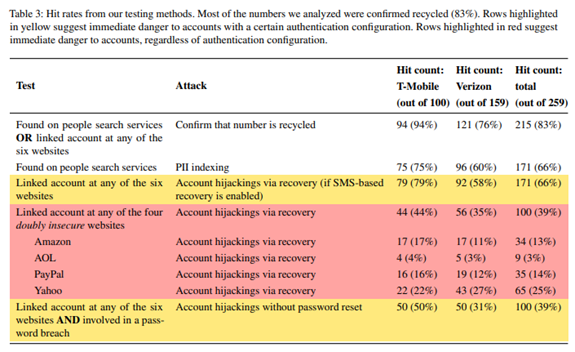
In a 2021 Princeton University study, it was found that 66% of mobile numbers listed as available by major mobile service providers were still connected to accounts on popular sites (Amazon, PayPal, etc.). 

So, after the former owners had turned in the number, it was available for someone else to use when signing up for mobile service. And that number was still being used on the former owner’s cloud accounts, allowing those accounts to easily be breached.

Because our mobile numbers are connected to much of our online and offline life, it’s important to take certain steps to ensure that you don’t leave yourself at risk when recycling your phone number.

Change Your Phone Number for Online Accounts

We all generally have more online accounts than we immediately remember. The average person must juggle 100 passwords, and most of those passwords will be to a website or cloud app service of some kind.

The first thing you want to do is begin visiting your online accounts and cloud applications to update your mobile phone number. Many of these apps now use a text message to your number as a form of verification if you’ve lost your password.

You want to ensure any password reset messages go to you and not someone that has requested your old number for the express purpose of identity theft or account compromise.

Change Your Number for Social Media Accounts

Technically, a social media account is also an online account, but many people think of them as a separate entity. When a Facebook or LinkedIn account is compromised, the hacker often will send social phishing messages out to your friend connections to try to gain access to sensitive data or scam them out of money.

Make sure to change the phone number listed in your social media accounts. If you are using WhatsApp, which is tied directly to your mobile number, make sure to follow their instructions on changing your number so your communications will remain secure.

Change Your Phone Number for Service Providers That Send You Texts

Text messaging is beginning to replace email for many types of communications. This includes things like shipping notices, confirmations of payments from utility companies, appointment reminders, and sale notices from retailers.

This puts you more at risk if you change your mobile number because the texts you receive from various service providers can be used for identity theft.

Make sure to connect with any services you use that contact you by calling or texting your mobile number to update your information. These offline services could be a:

  • Plumbing or HVAC company
  • Dentist or doctor’s office
  • Pharmacy
  • Local retailer
  • Utility company

Double Check All Your Multi-Factor Authentication Prompts

One of the big dangers of having a stranger able to receive your text messages is that they could have access to your codes for multi-factor authentication (MFA).

MFA is designed as a safeguard to help prevent an account breach, even if the perpetrator has your username and password. But if the criminal gets the MFA codes sent to your old number, they can easily get in and change your password, locking you out of your own account.

As you go through the process to update your mobile number in your online accounts, double-check the MFA prompt for any that use this form of authentication security. You want to make sure it’s been properly changed to send a message to your new number.

Review Your Text Message History for Anything You’ve Missed

Inevitably, there will be online accounts or service providers that you’ve missed. For example, that place you always order flowers for on a loved one’s birthday every year but never visit at other times.

Scroll through your text message history to find any other accounts that you may have forgotten to update.

Text Friends, Family & Colleagues from the New Number

Once your online security is taken care of, you want to stop friends, family, and colleagues from accidentally texting your old number. This can happen in both one-on-one and group SMS chats.

Send a text message from your new number asking them to immediately update your contact with that number when they receive it. Then go the additional step by asking them to delete any messages that used your old phone number. This can help prevent them from accidentally grabbing that message instead of your new one when texting you in the future.

How Secure Is Your Mobile Device?

Mobile devices are increasingly being attacked by malware and phishing. Is your device properly secured? Don’t leave yourself at risk, request a mobile security check to protect your personal data and identity.


Featured Image Credit

This Article has been Republished with Permission from The Technology Press.
person using black laptop computer

These Google Search Tips Will Save You Tons of Time!

Over 2.4 million searches happen every minute on Google. It’s often the first stop people make when they go online.

We search daily for both personal and work needs, and often searching out the right information can take a lot of time if you have to sift through several irrelevant results.

One study by consulting firm, McKinsey, found that employees spend an average of 1.8 hours daily, or 9.3 hours each week, searching and gathering information. This can be a productivity sinkhole as more web results keep getting added to the internet every day.

One way you can save time on your personal and work-related searches is to learn some “secret” Google search tips. These help you narrow down your search results and improve productivity by helping you find the information you need faster.

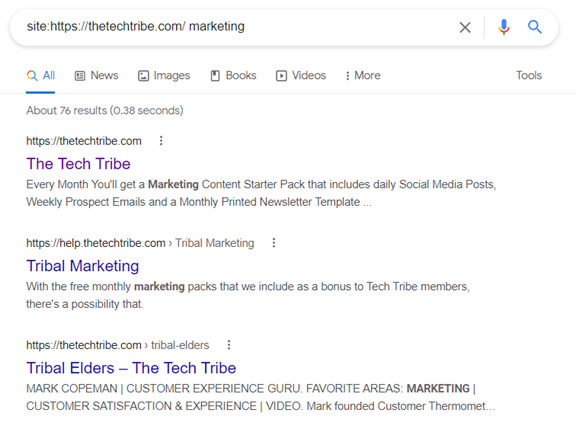
Search a Specific Website Using “site:”

Sometimes you need to find information on a specific website. For example, you might need to locate a government statistic that you know is out there but can’t seem to bring up on a general search.

You can use Google to search keywords on a specific website by using the “site” function.

In the search bar use the following:  site:(site url) (keyword)

This will bring up search results only for that one specific URL.

Find Flight Information Without Leaving Google

When you need to access flight information, you’re often on the go. Either getting ready to head to the airport or waiting for someone to arrive. Having to load multiple site pages in your browser can take valuable time. Instead, get your flight results directly from Google.

Just type in the flight number and the name of the airlines, and you’ll get a listing of flight information without having to click to another page. You can even tab to choose flight info for that same flight on different days.

Look for Document Types Using “filetype:”

If you’ve just been tasked with coming up with a presentation on sustainable energy, it can be helpful to see what other people have done on the same subject.

Searching websites can give you a lot of details to sift through but searching for another PowerPoint presentation can provide you with even more insight into how others have distilled that information down into a presentation.

Google has a search function that allows you to search on a file type, so instead of webpages showing up in your results, files of the file type you searched will appear.

To use this function, type in the following: filetype:(type) (keyword)

In the case of wanting to find a PowerPoint on sustainable energy, you could use the following in the search bar: filetype:ppt sustainable energy.

All the results will be PPT presentations.

You can also use this function for other file types, such as:

  • DOC
  • PDF
  • XLS or XLSX
  • SVG
  • and more

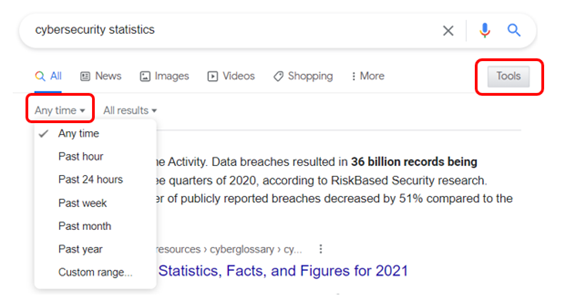
Narrow Down Timeframe Using the “Tools” Link

One frustration is when you’re looking up something like a population or cybersecurity statistic and you end up with results that are too old to be relevant. You can spend valuable time paging through the search results, or you can tell Google what time frame you’d like to search.

To narrow your search results by a specific timeframe, do the following:

  • Enter your keyword and click to search.
  • Under the search bar, click the “Tools” link.
  • Click the “Any time” link.
  • Choose your timeframe.

You can choose from preset timeframes, like past hour or past year, or you can set a custom date range for your results.

Locate Similar Sites Using “related:”

When you’re researching a topic online, it’s often helpful to find similar websites to the one you are viewing. Seeing related sites can also be used if you’re trying to find a specific product or service online and want to do some comparison shopping.

Google can provide you with a list of related websites when you use the “related” function.

In your search bar, type the following: related:https://website.com

One more way that you can leverage this search tip is to look for competitors by entering your own website URL in the search.

Get Rid of Results You Don’t Want Using “-(keyword)”

Non-relevant results are one of the main timewasters of online searching. You have to page through results that have nothing to do with what you really want to find, just because they use a related keyword.

For example, say you were searching the Ruby Slipper Cafe in New Orleans. But in your search results, you keep getting pages related to the movie the Wizard of Oz. You could eliminate those irrelevant results by using the negative keyword function.

Just type: (keyword) -(keyword)

Basically, you are just putting a minus sign in front of a keyword that you want to exclude from your search. In the example above, you would type: ruby slippers -oz.

Looking for More Ways to Boost Productivity & Save Time?

IT consultants aren’t just for large projects, we can also help you boost productivity in your everyday workflow to make your life easier.


Featured Image Credit

This Article has been Republished with Permission from The Technology Press.

person using Windows 11 computer on lap

What Are the Most Helpful Features of Windows 11?

Windows 11 has been out for a few months now, beginning rollout in October of 2021. It has been largely well-received and seen as stable with very few bugs noted.

One of the reasons that Windows 11 has been welcomed with open arms for both home and business computer upgrades is that it isn’t a dramatic experience difference from Windows 10. This upgrade is mainly focused on helping users do tasks faster and find things more easily.

If you’ve been on the fence about whether or not to upgrade to Windows 11, we’ll go through several of the most helpful features below that might make you want to upgrade sooner rather than later.

And if you have already upgraded your machine to Windows 11 or purchased a new PC with the OS installed, you’ll want to look over these features to make sure you haven’t been missing out on some productivity enhancers.

Snap Layouts

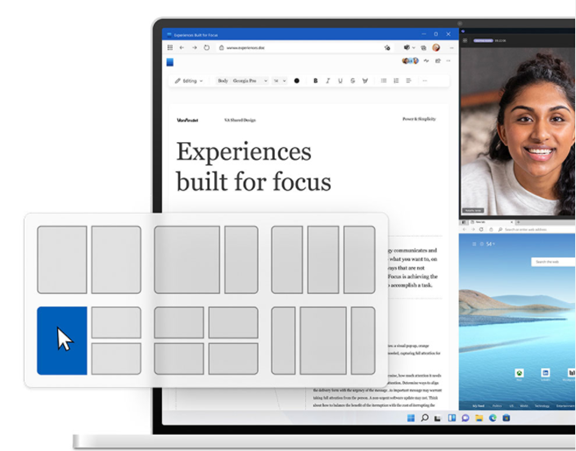
One challenge that tends to be universal across multiple users is the struggle with trying to work in more than one window at a time on your PC screen. You can end up spending time resizing the windows just right, then need to open a window to full size to reach a scroll bar and end up back at square one.

Many users will app-switch, meaning they switch between one app window that is fully open and another that isn’t. This is also time-consuming.

In a study of user productivity, it was found that 56% of app users said that switching between apps makes it difficult to get essential work done and costs them at least 30 minutes per day.

Enter… snap layouts in Windows 11.

This feature is designed to solve this problem by providing the user with several options for window arrangements that snap windows into place. The view is designed so you can reach all scroll bars and menu items in a particular app window.

This is one of the most time-saving features of the new operating system and it’s very intuitive and easy to use.

Texting & Video Calls from Teams on the Desktop

If you’re one of those people that hates typing out texts on a tiny smartphone screen only to have it altered by a rogue auto-correction, then the new Teams integration in Windows 11 is going to be a welcome change.

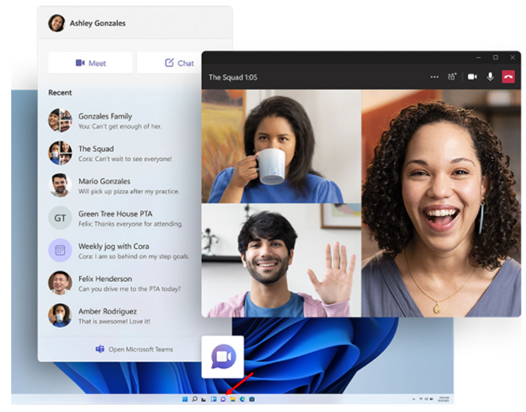
Teams is now natively integrated on the taskbar, there is no application you need to install. Setup only takes a few minutes and involves you putting in your name and a mobile phone number.

Using the Microsoft Teams icon from the desktop, you can instantly begin connecting to people via SMS or video/audio chat. You can even share a screen during your meetings.

The To Do Widget

One of the new features in Windows 11 that doesn’t look fully finished is the widgets panel. This feed has a few basic applications in it at the moment, and more are expected to come, which will make it even more useful.

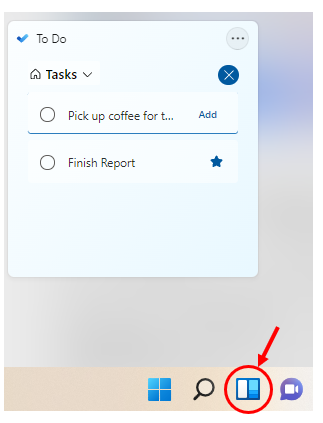
You get to this panel through an icon on the taskbar, and the widget feed can be tailored with local weather, traffic, news, and more.

One of the helpful features you can use right now is the To Do widget. It allows you to quickly create a task list and check off those tasks without having to open another application.

The widget can be added in seconds to your panel and can be quite a time-saver because of the easy access right from your desktop.

Streamlined Start/Search Menu

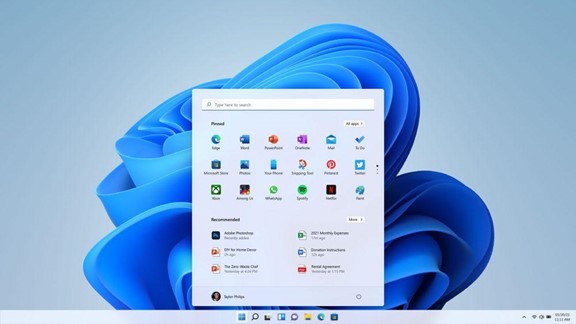
If you’re still using your file explorer to search for documents, you can save a lot of time by using the Start/Search menu instead. Click the Windows icon on the taskbar (which has now been moved to the middle instead of far left) and type your search keyword at the top.

This is a master search that will bring up documents, settings, applications, and even web pages. Searching using the Start Menu is faster than trying to find a file in the Explorer.

The newly streamlined interface also reduces the clutter of the old Windows Start Menu making it easier to get where you need to go.

Task View

Task view is the virtual desktop feature that had been introduced in Windows 10. This remains a very handy feature for separating the different areas of your work to stay focused.

You can use the task view icon on the taskbar to create a different virtual desktop with different open applications and documents. For example, you could keep your email open on one virtual desktop and then use another when you’re in a video call and sharing screen.

Get Help with a Smooth Upgrade to Windows 11

An upgrade of an entire company to a new OS can be time-consuming. Save time and skip any downtime by working with an IT professional to roll out a smooth upgrade and get users trained on the new features.


Featured Image Credit

This Article has been Republished with Permission from The Technology Press.
Which Type of Hackers is Endangering Your Business Data? (And How to Protect Your Sensitive Info from Them)

Your data is pivotal to running a successful company. If you don’t have proper security measures in place, hackers can easily steal your data and take you out of business.

Cybercriminals might be the biggest threat facing your company. Besides gaining access to your money and accounts, they can also take over critical software, preventing you from collaborating with clients. 

Any organization can fall victim to hacking. However, small and medium businesses are particularly at risk. 

Why?

Too often, their owners don’t always address cybersecurity when launching their company. Sometimes, they even just hire the first IT service provider they see. They also don’t know how to shield themselves from online attackers, making them low-risk targets. 

As a result, these organizations often go under due to the loss of sensitive data. It isn’t a risk you can take. 

To help mitigate it, this article will introduce you to the various types of hackers and explain how to protect your business from them.

THE 5 TYPES OF HACKERS TO WATCH OUT FOR

Here’s a quick list of potential hackers, depending on what they’re after:

#1. HACKERS WHO ARE AFTER PERSONAL INFORMATION

Many hackers are dying to get their hands on the personal information of your clients and employees. It includes birth dates, financial data, and social security numbers. 

Social security numbers might be the most valuable asset they want to get ahold of since cybercriminals can use them for various purposes. For instance, they can perform tax fraud, open credit accounts, and make other significant identity breaches. 

In addition, financial data can be utilized for fraudulent activities and purchases, especially if it lacks robust digital security systems. 

#2. HACKERS WHO WANT TO GET INTO THE DIGITAL  INFRASTRUCTURE

Storage and data servers are expensive – and hackers know that.

In order for them to cut costs, hackers may aim to store their applications and data on your infrastructure instead. The better your infrastructure, the more likely cybercriminals are to target it. This can strain your network to the limits and have devastating effects on your business. 

Unsurprisingly, tech companies are some of the most common victims of this type of hacking. 

The common indicators that a hacker has tapped into your digital infrastructure include:

  • Running out of storage faster than usual
  • Your network suffers slowdowns 
  • You may have unknown devices on your network. 

#3. HACKERS WHO ARE AFTER CONFIDENTIAL INFORMATION

Few business aspects are as important as your intellectual property (IP). Your products and services enable you to stand out from the competition and strike a chord with the target audience. 

A huge problem arises if hackers steal the design of your upcoming product before you launch it or submit your patent. A competitor may obtain the information, allowing them to hit the market first and undercut your sales. 

#4. HACKERS WHO WANT TO GET ACCOUNT DATA

Sure, you and your IT service provider might have done enough so that hackers might not be able to obtain financial data. But are your employees’ accounts secure? 

If hackers compromise them, they may let them run scams and gain information to disrupt your operations. 

For example, losing CEO login credentials can be devastating. Besides granting hackers access to sensitive information, it also helps them impersonate the CEO. In return, they can solicit information from employees or clients and halt your operations. 

This data breach can lead to widespread confusion, tarnishing your reputation. 

#5. HACKERS WHO AIM TO HAVE NETWORK CONTROL

In some cases, hackers aren’t after data. Instead, they want to gain control of the entire network. And to make it happen, they launch ransomware attacks. 

These activities enable them to lock you out of the system and make data inaccessible until you pay a ransom. They’re typically initiated through spam, phishing emails, and online ads. 

The average ransom amount stands at approximately $30,000, but the loss caused by business disruption is much more significant. 

HOW TO PROTECT YOUR BUSINESS

Now that you know how hackers can compromise your company, let’s check out 5 effective ways to protect yourself: 

WAY #1. INVESTING IN SECURITY RESOURCES

A key factor ignored by many owners is the amount of money and time devoted to cybersecurity. Avoid this mistake by allocating enough resources to set up solid defensive measures. Make sure to invest in a reliable IT service provider to help you out.

This way, your online accounts, hardware, and network should be more secure. 

WAY #2. TRAINING YOUR TEAM

Most security systems have weaknesses. And their employees are usually the biggest ones. 

For this reason, HR managers and CEOs should ensure their staff follows optimal security measures, both in-office and at home. They must all remember that any phone or laptop they use for work can be a weak point and entryway for hackers. 

To introduce your employees to the best security practices, consider arranging security education and training for a month once a year. You can talk about different aspects of your company and the steps necessary to deter cybercriminals, for example. 

Sound education can go a long way in promoting a healthy security culture. 

WAY #3. ADDING AUTHENTICATION

There are many valuable tools you can use to fend off hackers. One of them is two-factor authentication (2FA) – a simple yet effective weapon against scammers. 

This measure requires each user to verify their identity to access your system. You could use it on all business-related accounts to reduce the chances of cybercrime. 

Furthermore, encourage your team members to activate 2FA on personal accounts. This way, they’ll be more likely to follow appropriate security practices, reducing the risk of compromised devices and data breaches. 

WAY #4. LEVERAGING SOFTWARE

Computer viruses are another go-to tool for hackers. And a great way to deal with them is to incorporate antivirus software. 

Make sure your built-in antivirus software is up to date. Also, you can consider a corporate package from trusted companies like BitDefender, Norton, McAfee, and Total AV. 

Each machine that can access work resources should rely on this software. Plus, the user should conduct weekly antivirus scans to lessen the chances of computers getting infected by a virus.

WAY #5. PERFORMING SECURITY CHECKS 

Checking your system is vital for optimal cybersecurity. Solid antivirus software is practical, but you shouldn’t disregard manual scans. It’s crucial that your IT service provider does this periodically.

More specifically, check who’s accessed your network and make sure each point of access is authorized. Any suspicious activity must be reviewed and rooted out. Otherwise, these red flags can prove fatal for the company. 

STAY ON THE SAFE SIDE 

Battling hackers may not be the most exciting part of running a business. However, neglecting cybersecurity turns your company into a sitting duck for scammers. You may lose money, data, and your reputation might suffer irreparable damage. 

While there isn’t a bulletproof solution, adopting the outlined tactics should be a strong starting point. 

Contact us today if you want to discuss your cybersecurity in greater detail and pinpoint potential risks. We can arrange a quick, non-salesy chat and figure out ways to help you. 

Article used with permission from The Technology Press.

Why Protecting Your Printers from Cybercrime Is a Must (And 8 Tips for Improving Printer Security)

Printing devices are often overlooked when it comes to security. But the reality is, cybercriminals can hack your printer to get confidential information.

Your printer is probably the last piece of computer equipment you thought needed protection from cybercriminals.

But the truth is very different.

Attackers actively try to locate the weakest links in security to gain access to and exploit valuable data. And among the weakest links is the printer.

The thing with printers nowadays is that they have access to your devices, network, and the internet. This new open-access functionality makes them an ideal target for cyberattacks.

Unfortunately, many business owners overlook the importance of securing their printers and mainly focus on computers and mobile phones.

Most people still perceive printers as internal devices that serve basic functions. For this very reason, they are an easy target for cybercriminals.

Other than performing unauthorized print jobs, hackers can access confidential information as well as all connected computers and networks all through a printer.

You may also not be aware of the amount of valuable data your printer can store about you – tax files, bank details, financial records, employee information, personal information, etc. All a hacker needs to do is get into the operating system of your printer, and they can collect this sensitive data.

If you’ve just realized the importance of securing your printer, keep reading. This article shares eight tips to help you do just that.

THE 8 TIPS

TIP #1. MAKE SURE YOUR PRINTERS ARE CONFIGURED CORRECTLY

Many things can make a printer vulnerable to cyber threats and security breaches. So, you want to get the basics right to ensure the attacks don’t happen to you. 

To start with, make sure to change the default password on your printer. Since anyone can access a printer remotely, a simple “123456” code won’t suffice. 

Second, make sure you’re using your own router to print files remotely. Never connect to “Guest” networks.

TIP #2. INSPECT PRINT TRAYS REGULARLY

This one is a no-brainer, but everyone could use it as a reminder. Make sure to check your print trays and get rid of unused pages carrying sensitive information. There’s no easier way to prevent data leaks than this.

Alternatively, you can get a shredder for your office and shred the papers you don’t want anyone to see.

TIP #3. INSTALL MALWARE AND FIRMWARE UPDATES

Invest time and effort to ensure that your malware and firmware protection are up to date and can handle all types of hacks.

The good news is that many printers come with pre-built malware protection.

HP, for example, installs the HP “SureStart” software in their printers that monitors approaching targets when the printer is on. The software can shut down the device if an attack comes its way. This is a great way to prevent attacks from spreading further within the network.

TIP #4. LIMIT ACCESS TO THE NETWORK 

Unprotected printers in a network are an extremely easy target for cybercriminals. Sure, businesses and offices require printers to access networks to perform remote prints. But if you can do the job by disabling the network access, make sure you do that.

If not, tweak the printer and network settings to only allow the device to take print jobs from the network you trust. This will help avoid outside interference and security breaches. 

TIP #5. UPDATE YOUR PRINTERS 

Updating a printer is equally as important as updating your phone to the latest software. Much in the way iOS developers look for bugs and fix them in a new update, printer manufacturers work toward known device vulnerabilities and update the software for added protection. 

Look for printer updates so you can easily overcome known threats to the printer. Ideally, update your printers every quarter to get the most out of the security benefits.

 TIP #6. INSTALL A FIREWALL 

If you run an office, chances are you already have a firewall. But in case you missed this requirement, now’s the time to do it.

Using a reliable firewall helps keep printers safe from cybercriminals.

Your computers most likely come with pre-built firewalls, and all you need to do is keep them enabled. But there are also specialized firewalls for homes and offices that offer advanced security and make it virtually impossible for anyone to break in.

TIP #7. ENCRYPT YOUR STORAGE

Printers with shared networks can perform distance printing. And when a print job is in transit and travels from a computer to a printer, hackers can intercept the data and exploit it

Is Updating From Windows 10 to 11 Worth It? Here Are the New Features in the OS (And Some Missing Ones)

Getting used to Windows 11 shouldn’t be too challenging. On the contrary, the OS comes with several intuitive features to enhance productivity.

Microsoft recently introduced Windows 11 as the company’s latest operating system. And compared to Windows 10, this OS has various features that can increase your productivity and provide a better user experience.

As soon as you start using Windows 11, you’ll see a marked improvement over its predecessors.

For example, it has refined several household features, such as video conferencing and video management. You also get enhanced note-taking, data input, and a user-friendly interface that should help you complete your duties more efficiently.

Many other features can help boost your productivity, and this article will talk about them in detail. We’ll also look at some features Microsoft didn’t include in the new version.

WINDOWS 11 – WHAT’S NEW?

FEATURE #1. NEW TASKBAR

Previous Windows versions feature an iconic taskbar, but it can sometimes get clunky. Windows 11 deals with the cruft and provides a streamlined solution.

The new taskbar is perfect for expediting work, as it can contain a list of recent cloud and local files. You can also pin various apps to improve access and utilize a search bar that allows for convenient web browsing.

Another highlight of the taskbar is clean lines and widgets that display essential information (e.g., weather, photos, and news).

This should be a tremendous upgrade from the busy display of Windows 10.

FEATURE #2. WINDOWS GROUPING AND SNAPPING

The enhanced Snap Group and Snap Layout features allow you to resize and manage windows more easily. You also get to keep essential apps grouped to maintain high productivity.

Using the feature is relatively straightforward: Just hover the mouse over the maximize button on the desired app to reveal your layout options. You can choose between several arrangements, such as four-app grids and side-by-side layouts.

And if your team needs to perform basic window management, they can still grab and pull windows to the edge of their screen.

This feature improves desktop organization, which is especially useful for people working with two or more monitors. They can reduce clutter rapidly, enabling them to focus on their tasks.

FEATURE #3. IMPROVED ACCESSIBILITY OPTIONS

Windows 11 follows in the footsteps of many smartphones to simplify setting changes and make them easily accessible. Pulling up your control panel now only requires one tap or click in the taskbar coroner, replicating Apple’s Control Centre.

Furthermore, Windows 11 apps feature aesthetic, curved corners, and your Settings incorporate more options you can tweak. For instance, blind or vision impaired users can take advantage of cutting-edge audio cues. There are also desktop themes to help reduce eye strain, which is essential if you work long hours.

On top of that, the new operating system has revamped voice typing. You can activate this with a simple keyboard shortcut. This feature supports most major languages, including English, German, Italian, French, Spanish, Simplified Chinese, and Portuguese.

Windows 11’s better accessibility means your team will no longer have to keep relying on your IT service provider to set things up for them.

FEATURE #4. BETTER APP STORE

Many apps can enhance workplace productivity, but you’ll first need to find them on your PC’s app store. Fortunately, Windows 11 came up with an organized and coherent platform to make the search easier. 

Besides universal apps, you can check out the applications compatible with your devices. The platform can also handle programs from third-party stores and manage app installation on the internet. 

FEATURE #5. SMOOTH NOTETAKING

If you’re using a touchscreen device, taking notes in Windows 11 should now be highly satisfying. This feature offers haptic feedback to generate physical sensations when drawing lines on the screen or checking boxes with your pen. 

Moreover, the Ink Workspace allows you to add preferred apps instead of using the standard snipping tool and Whiteboard. It gives you easy access to creativity tools the moment you pull out your pen.

WHICH FEATURES WERE LEFT BEHIND? 

Overall, Windows 11 should work great for your business. But bear in mind that Microsoft left out some features that were a staple in previous versions:

EXCLUDED FEATURE #1. TASKBAR CUSTOMISATION

Windows 10 users can move their taskbar from the horizontal position to the left, right, or upper part of their screen. In contrast, the Windows 11 taskbar is fixed at the bottom of the display, and you can’t customize the dimensions. 

The taskbar customization feature would have been helpful because it would let you use space more efficiently. 

Another significant change is that you can no longer move the Time and Date on your taskbar. Windows 10 didn’t have this problem since you could toggle off the Clock feature in your Settings. 

The default taskbar layout might be fine, but some users prefer higher customizability than what Windows 11 offers.

EXCLUDED FEATURE #2. DRAG-AND-DROP FEATURES

Windows 10 and some earlier versions allowed you to drag several items to change their position. For example, you could drag a Word document onto your Word icon on the taskbar to open it. 

This function is disabled in Windows 11. There’s no way to drag and drop or save any program or file onto your taskbar.

EXCLUDED FEATURE #3. CORTANA 

Cortana is a voice assistant counterpart of Siri, Alexa, and Google Assistant. Many people are used to it and may be disappointed to hear that it’s not a part of the Windows 11 system setup. You can’t even locate it in your start menu. 

The good news is that the Cortana application can still be found – it’s just hidden away. And you can enable it by visiting Settings and navigating to Apps & Features.

A WISE INVESTMENT

While Windows 11 isn’t perfect since it removed many valuable features, it’s still an excellent platform to help increase your productivity.

 Whether you need to organize your desktop more conveniently or take enjoyable notes, the OS won’t let you down. Plus, you get a revamped taskbar and powerful Voice Typing compatible with most major languages. 

Overall, Windows 11 can be a terrific asset for your business.

If you want to find out more about incorporating this new OS to boost productivity in your organization, contact us today. We can have a 10-15-minute chat to help you address key productivity issues in your company with the help of Windows 11.

Article used with permission from The Technology Press.

The Critical Importance of Virtualized Infrastructure Security (And 4 Ways to Enhance It)

A torn-down virtual infrastructure creates risks for any business. And it can have a significant impact on how quickly you can retrieve your data and resume operations following an attack.

These days, many businesses use virtualized infrastructure for more straightforward data storage. It’s because this approach is superior to physical solutions due to enhanced flexibility, straightforward provisioning, and affordable pricing. 

However, this model also requires a comprehensive approach to security. 

There’s a much greater risk of data loss, as many tools and practices for physical data protection are nearly useless in the virtual setting. Virtual threats are different, that’s why you need to think beyond traditional perimeter protection. 

So, if you’re using a virtualized infrastructure for data storage, keep reading. 

This article discusses the risks of improper virtualized infrastructure security and talks about ways you can improve it. 

DON’T LEAVE YOUR VIRTUALIZED INFRASTRUCTURE TO CHANCE

Virtualization security is crucial for every business’s security strategy. After all, we now live in a world of virtualized environments and need to apply security to all its layers.

Let’s explore three of the most common virtualization security issues.

ISSUE #1. EXTERNAL ATTACKS

These are a real threat to virtualized infrastructure.

If hackers enter your host-level or server management software, they can easily access other crucial parts of your system. They can create a new user, assign admin rights, and then use that power to extract or destroy your company’s sensitive data.

ISSUE #2. FILE SHARING AND COPY-PASTING

Host and virtual machine (VM) sharing is normally disabled. The same goes for copy-pasting elements between the remote management console and the VM. You can tweak the default settings by tweaking the ESXi host system, but this action isn’t recommended. 

Why?

Because if a hacker gains access to your management console, they’d be able to copy data outside your virtual environment or install malware into your virtual machine.

ISSUE #3. VIRUSES

Virtual machines, or VM, are prone to many attacks, with ransomware being among the most popular ones. For this reason, it’s crucial to keep regular backups of your website data and store them off-site at a place where they can’t be encrypted by hackers. 

If you fail to perform backups, you may find yourself in a situation where hackers could ask you for money to decipher your data. 

Restoring a VM is quite tricky even if you perform regular backups. Therefore, you need to educate your team members on alleviating the risk of getting ransomware and other viruses.

Optimizing Your Virtualized Infrastructure Security

Now that you’re aware of the 3 common issues a business can face if they have an unprotected virtual infrastructure, here are 4 tips on bolstering its security.

TIP #1. MANAGING VIRTUAL SPRAWL

Virtual sprawls are often associated with growing virtual environments. The concept simply means that the more you expand, the bigger the need to keep your VMs secure. However, the number of machines can outgrow your ability to do so. 

To manage your virtual sprawl, consider doing the following:

  • Create an inventory of all your machines at all times
  • Set up lookouts featuring multi-location monitoring
  • Monitor IP addresses that have access to your VMs
  • Look for table locks
  • Don’t use database grant statements to give privileges to other users
  • Keep both on- and off-site backups
  • Assess your virtual environment regularly and determine which machines you need and which ones aren’t necessary
  • Have a central log of your systems and log all hardware actions
  • Create a patch maintenance schedule for all machines to keep them up to date

<H3>TIP #2. FOCUSING ON VIRTUAL CONFIGURATION SETUP</H3>

If you use virtual servers, you risk major configuration defects. 

That’s why it’s essential to make sure initial setups are free from security risks. This includes unnecessary ports, useless services, and similar vulnerabilities. Otherwise, all your virtual machines will inherit the same problems. 

The truth is that many businesses have poor virtual network configurations. You can avoid being one of those by ensuring all virtual applications that call the host (and vice versa) have proper segmentation. This includes databases and all web services. 

It’s also worth mentioning that most virtualization platforms only offer three switch security settings: forged transmits, MAC address changes, and promiscuous mode. There’s no protection for virtual systems that connect to other network areas. 

So, make sure to investigate each virtualization platform that allows this kind of communication, including all memory leaks, copy-paste functions, and device drivers. You can also tweak the system monitoring assets to look out for these pathways. 

TIP #3. SECURING ALL PARTS OF THE INFRASTRUCTURE

It’s imperative that you properly secure all of your infrastructure’s parts. This includes its physical components (switches, hosts, physical storage, routers) and virtual and guest systems. Don’t forget about all your cloud systems as well. 

When it comes to protecting different infrastructure parts, here are some things you can do:

  • Install the latest firmware for your hosts. Virtualized infrastructure needs to have the latest security patches. So, keep all your VMware tools updated. 
  • Your active network elements such as routers, switches, and load balancers should use the latest firmware.
  • Patch all operating systems with automatic updates. Schedule patch installations outside of your work hours and include automatic reboots. 
  • All virtualized environments should have reliable anti-malware and antivirus software installed (and regularly updated). 

TIP #4. HAVING A ROBUST BACKUP PLAN

Proper disaster recovery (DR) and backup plans are crucial in ensuring your business can continue operating after an attack. It’s because both your physical and virtual components can equally suffer from damage done by hacker attacks, hurricanes, etc. 

Ideally, you want to have a DR site located at a faraway data center or in the cloud. This way, you’ll alleviate the risk of being shut for a long time if your vital data gets compromised. 

Also, make sure to back up your VMs and your physical servers. Fortunately, you can back up your physical systems that operate on Windows or Linux, as well as your VMs that run on any OS. 

Additionally, you want to make at least three copies of your data and store two of them in different virtual places. And make sure to keep one backup off-site. 

If you want to take things to another level, you can replicate your VMs to a different data center for emergencies. 

PRIORITIZE THE SECURITY OF YOUR VIRTUAL INFRASTRUCTURE 

If you never gave much importance to virtualized infrastructure security, doing so should be your priority now. Given the number of possible threats, protecting your VMs from unauthorized data sharing, viruses, and other types of attacks is crucial. 

All aspects of your physical and virtual components need to be protected to avoid issues. If this topic is all Greek to you, you’re not alone. The reality is that many business owners have struggled with the same problem. 

However, you can reach out to us for a 10-15-minute chat where we can discuss how you can bring the security of your virtualized infrastructure to the next level. 

Article used with permission from The Technology Press.
Making Your VoIP Network Bulletproof (Six Tips to Protect Your VoIP from Cyberattacks)

Hardly any phone call system in a business beats VoIP when it comes to efficiency and flexibility. However, it’s not immune to cyberattacks. Discover how you can secure your VoIP ASAP.

What kind of communication system are you using for your business?

I asked because many modern-day businesses have now switched to the Voice Over Internet Protocol (VoIP). This technology allows employees to perform voice calls using only their internet connection. 

It’s often a wise choice considering that using VoIP comes with several benefits to a business.

Among its benefits include lower operating costs, greater convenience than traditional services, increased accessibility, higher scalability, and the ability to multitask. VoIP also comes with advanced features for teams of all sizes, is completely portable, and offers superior voice quality. 

However, VoIP systems also have limitations, with cyberattacks being their number one downside. 

The good news is that it’s possible to protect a business’s VoIP system from hackers. And if you already implemented this in your business, it’s not too late to secure it.

Read on to discover the most common threats to your network and tips on preventing them.

THE NEED FOR VOIP PROTECTION

All VoIP systems require a stable internet connection to function properly. Unfortunately, their reliability on the internet makes them vulnerable to various security issues.

Some of the most frequent ones include:

SECURITY ISSUE #1. DENIAL OF SERVICE

Denial of Service (DoS) is a common threat to VoIP systems comprising attacks designed to shut down a machine or network and make it inaccessible for use. 

When this happens, legitimate users of VoIP technology may not be able to access their information systems and devices. And call centers can be affected by lower call quality, uptime, and latency.

SECURITY ISSUE #2. WAR DIALLING

War dialing is an attack that controls the company’s private branch exchange (PBX) and scans for other phone networks. This means hackers can dial numbers and connect to modems and other extensions.

SECURITY ISSUE #3. TOLL FRAUD

Toll fraud is a threat that consists of making calls to outside lines from a company’s existing system. 

For example, hackers will dial costly international numbers intending to rack up toll charges to your business.

SECURITY ISSUE #4. PHISHING

This is a common threat wherein attackers send fraudulent messages designed to trick victims into revealing sensitive information. Often, the unsuspecting victims would divulge information about passwords, internal IP networks, and similar data.

SECURITY ISSUE #5. MALWARE

It’s a threat where attackers install malicious software via email or phone. A file or code gets delivered over a network and has the goal of infecting, stealing, or exploring the information contained within a system. 

After infecting the system with malware, VoIP hackers can enter your network and access critical business information

SECURITY ISSUE #6. CALL INTERCEPTION 

The call interception attacker uses unsecured networks to intercept the Session Initiation Protocol (SIP) traffic that serves to initiate, maintain, and terminate real-time voice and video sessions. 

A victim of a call interception attack can be redirected to another line hosted by the hacker, for example

6 TIPS FOR BOOSTING VOIP SECURITY

Given the variety of threats imposed by attackers on VoIP systems, it’s necessary to optimize your VoIP security ASAP. 

Here are 6 valuable tips to get you started.

TIP #1. SET UP A FIREWALL 

Secure firewalls are necessary for all VoIP systems. It’s important to make your VoIP software and hardware firewalls scan information that goes in and out of the system and ensure it’s secure. 

If spam or a threat comes your way, the firewall will identify and gain control over it, shielding your system shielded from the attack.

Also, a good firewall will allow the data packets you send to travel unhindered.

TIP #2. USE STRONG PASSWORDs

Your VoIP system is no different from any other software or platform you use for handling sensitive information. For this reason, it needs to be protected with strong and regularly updated passwords. 

Aim for combinations of at least 12 characters, including numbers, upper- and lower-case letters, and special symbols. And for ultimate protection, go for passwords consisting of a random character series. 

It’s crucial to set a password as soon as you configure your VoIP system. Otherwise, you’re likely to forget about it later. 

Also, remember that some VoIP phones come with pre-set passwords, often available publicly. That’s why you should change yours as soon as you get a chance. 

Ideally, try to change your passwords every three months.

TIP #3. RESTRICT CALLING

Many VoIP attacks happen due to toll fraud. So, if your business runs locally, there’s no need to have the international call option enabled. This allows you to be on the safe side and avoid paying expensive bills you weren’t even responsible for making. 

You can let your VoIP service block 1-900 numbers to avoid toll fraud

TIP #4. ENCOURAGE YOUR TEAM TO REPORT SUSPICIOUS BEHAVIOUR

Many of the VoIP attacks arrive due to irresponsible behavior. To prevent this from happening, educate your team on how they can best do their job without affecting the system’s security. 

For starters, they should know how to spot unusual network activity, handle passwords, and report suspicious behavior. They should also report ghost calls and missing voicemails whenever received. Staff also shouldn’t store voicemail for too long. 

The reality is that sometimes, cybersecurity training during onboarding often isn’t enough. That’s why you should do periodical training to keep your VoIP safe at all times. 

TIP #5. DEACTIVATE WEB INTERFACE USE

Ideally, you should deactivate the web interface used for your VoIP system.

Why?

Using phones on a desktop computer opens an area of weakness to attackers. It’s enough for a single phone user falling prey to leave the whole system exposed to an external party. All your data can be stolen in text format as a result.

So, unless it’s absolutely necessary for you to use the web interface, be sure to secure it very strictly.

TIP #6. USE A VPN FOR REMOTE WORKERS

Virtual Private Networks (VPNs) are great software that encrypts traffic regardless of your employee’s location. 

You can set up such a network for your remote staff to prevent data leaks and breaches. The good news is that using this service won’t degrade the call quality. 

(RE)GAINING CONTROL OVER YOUR VOIP SECURITY

VoIP systems are a fantastic alternative to landlines. After all, they offer many more features and flexibility at a fraction of the cost. However, their reliability on the internet also makes them susceptible to cyberattacks. 

If you have just set up a VoIP system for your company or are thinking of starting one, securing it should be your number one priority. Don’t risk falling prey to toll fraud, malware, phishing, and other attacks. Take some time to secure your business by following the tips from this article. 

And if you need more help to implement these changes or would like to further discuss securing your business’s VoIP system, reach out to us and we can set up a 10-15-minute chat.

Article used with permission from The Technology Press.

Lead Your Business More Effectively by Implementing Unified Communications

Unified communications are a go-to solution for business owners looking to streamline their businesses and increase employee productivity in the long term. See how it benefits your business.

Providing high-quality communication channels is crucial for any company. After all, it promotes cross-department collaboration and faster exchange of ideas.

Since phones often don’t suffice for this, many business owners turn to unified communications.

But what exactly is unified communication?

This article explains just that. Read on to discover the main concepts of this approach and how you can use it to help your business achieve success.

WHAT IS UNIFIED COMMUNICATIONS?

Unified communications is an all-in-one platform that unifies phone, video, screen sharing, chat, and file management into a single space. It’s a ready-to-use system that allows for seamless communication in numerous ways.

The system operates as a cloud, making it easily accessible to all team members with access to the internet.

But why should anyone consider switching to unified communications?

There are several reasons, but this is the most crucial:

Business leaders who adopt it would be able to impact their business every day and make it seamless for employees to interact with each other.

That said, we’ll list 5 of the key features of this concept to help you better understand how it can help you scale your business.

THE 5 FEATURES

FEATURE #1. MOBILITY

When connected to unified communications, all employees can stay connected at all times and from all locations. It doesn’t matter whether they’re working from home, vacationing on a remote island, or sitting in the office. They’ll still be able to chat, receive calls, and more.

FEATURE #2. UNIFIED MESSAGING

This allows employees to handle different message types using a single tool. They can easily switch communication modes, depending on their needs.

FEATURE #3. CONFERENCING

Whenever you need conferencing tools, you’ll have them in the palm of your hand. You can allow a group of teammates or customers from outside your organization to connect and speak via video or audio from different locations.

FEATURE #4. FAX SUPPORT

Faxes received through unified communications appear as email attachments. This way, users can also receive faxes on their desktops and smartphones.

FEATURE #5. PRESENCE

This feature lets other users know each other’s status. That means you’ll be able to see when someone is online (Active), busy (Do Not Disturb), or away (Out of the Office).

HOW UNIFIED COMMUNICATIONS HELP BUSINESS LEADERS

So, what are the benefits of using unified communications in your business?

Let’s explore 6 of them below.

BENEFIT #1. HIGHER TEAM PRODUCTIVITY

It’s important for a business owner to boost their team’s workflow and eliminate bottlenecks. Because once they get to do so, productivity will drastically improve.

This can be done thanks to unified communications.

This type of communication makes it easier for team members to save time on various tasks, including:

  • Faster file sharing that gets rid of email threads for teamwork
  • Ability to receive calls from any location
  • Ability to receive voicemails and faxes directly in the email
  • Single-click video meetings for emergencies

Teams with access to such technologies can be more effective and get more tasks done in a single day. It also helps get rid of communication challenges.

BENEFIT #2. LOWER COMMUNICATION COSTS

Legacy phones and on-site communication tools often cost more than your IT budget should allow.

On the other hand, unified communication relies on the internet for all its activities. This means your phone system turns to Voice Over Internet Protocol (VoIP) and integrates with the rest of the tools. This approach eliminates the need for server and hardware infrastructure creation.

Unified communications also make it super easy to add new users. You can simply do so via an easy-to-use dashboard without having to make service calls.

Finally, the cost of unified communications is the same every month. There won’t be any surprises to your budget.

BENEFIT #3. ENHANCED CUSTOMER SERVICE

Whether or not a company is successful greatly depends on the quality of its customer service.

With unified communications, your employees can provide great customer service easier. After all, they can respond to client queries regardless of their location. It’s because all chats, incoming calls, and emails are visible from any device.

You can also integrate all your CRM software on the platform for added benefits.

For example, when a person contacts your business, the person in charge can see all the necessary information and notes related to that client. In the end, they can help them solve issues faster.

BENEFIT #4. EMPOWERING A REMOTE WORKFORCE 

Thousands of companies have switched to remote work over the past few years. There are plenty of benefits to this approach after all.

However, a constant concern here is ensuring that remote workers have all the tools they need for work.

Thanks to unified communications, all communication aspects are included in a single platform. This means that all your remote worker needs is a stable internet connection to get access to your network and all the features, just like the rest of the team.

BENEFIT #5. INCREASING ORGANIZATIONAL AGILITY

When you increase your team’s productivity, the same follows for the entire organization. The organizational agility reflects the strategic value of unified communications. And the results you achieve impact your business as a whole.

So, to see how this approach benefits your work, you must view unified communications from the management side as well.

Sure, communication has a utilitarian role for management. But when that communication drives productivity, streamlines workflow, and leads to enhanced business outcomes, it’s where you really get to see its value.

BENEFIT #6. ENHANCED SECURITY 

The security aspect is crucial for every business. And unified communications enhance the security of a business by integrating all applications into a single platform.

As a result, it becomes straightforward for the IT team to apply specific security policies across all apps. It’s also easier for them to manage security patches and compliance updates since all applications share the same protocols.

REALIZING THE POWER OF UNIFIED COMMUNICATIONS

Streamlining the processes inside an organization is extremely important in improving the overall performance of its employees. And unified communications allow you to do just that. 

With it, you can boost your customer experience and make your team more efficient by integrating your whole communications system into a single platform. 

Unified communications will let you and your team make calls, host conferences, send emails, receive faxes, and chat from a single, unified space to make your job (and life) easier. 

If you’d like to learn more about implementing unified communications in your business, we’d be happy to help. Reach out to us and we can have a 10-15-minute chat to discuss this topic further. 

Article used with permission from The Technology Press.

Page 16 of 18

Powered by WordPress & Theme by Anders Norén